
How PokerOS works
Run a whole series from your phone or iPad — build the schedule, announce it, check players in, work the room, run the clock, and file the report. Here's everything, in the order you actually touch it.
Watch a full game run
Who sees what
Everything — Dashboard, Series, Cash games, Settings, and every tab inside a series.
Series only, and inside it the whole night: Events, Floor, Command, Dealers, Players, Report.
No Dashboard, no Cash games, no Settings. Cannot create or edit an event.
Nothing in the organizer app. They work from /dealer on a paired device.
Cannot reach past the felt they are down on.
Roles are built from what someone is allowed to do, so the menu is never wider than their permissions. Use View as next to your name to see any of these for yourself.
Sign up & your club
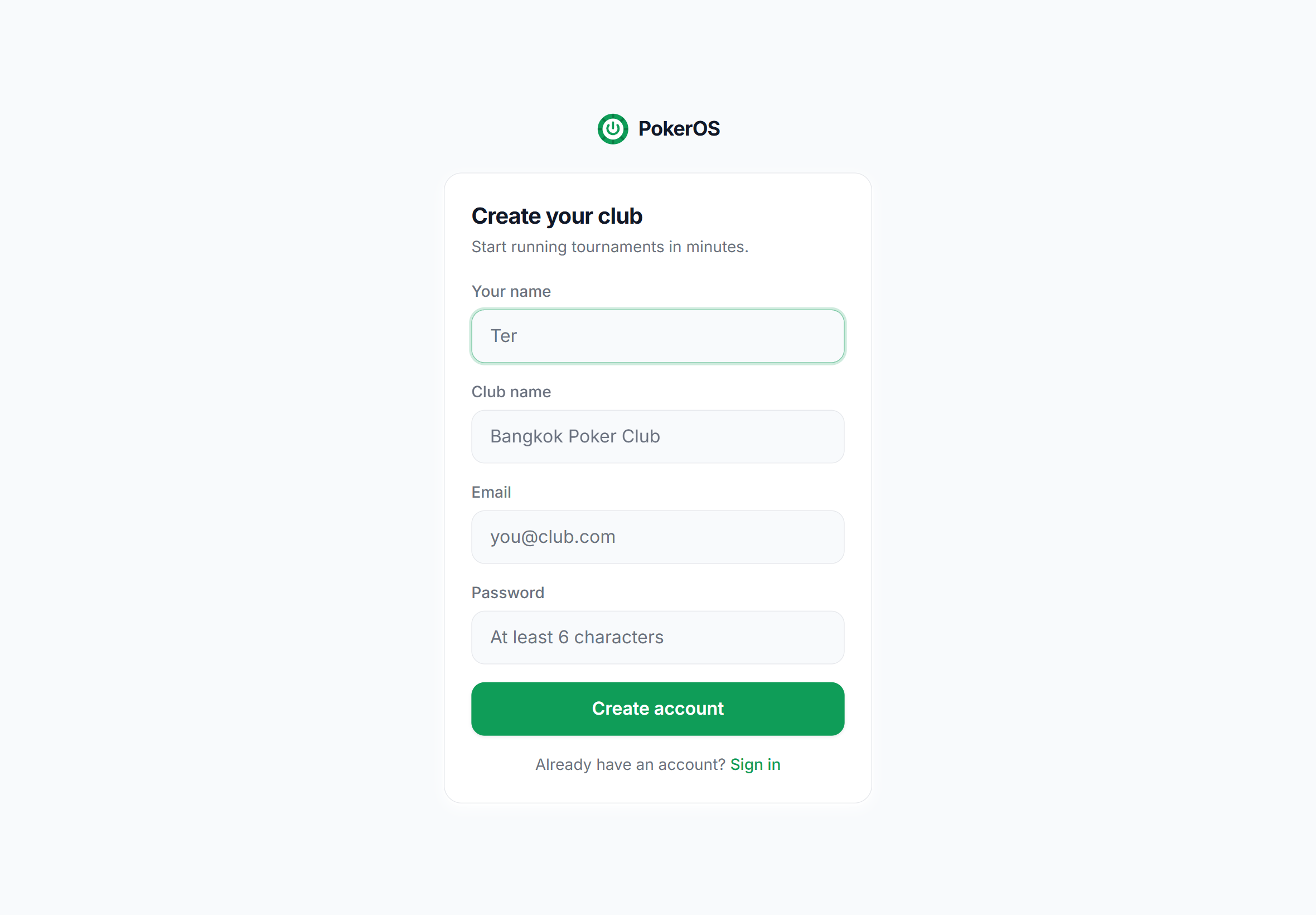
1Create an account and your own private poker club in seconds.
- 1Tap Create an account — enter your name, club name, email and a password.
- 2You're taken straight to your dashboard; a new club is created for you.
- 3You start on 30 days of Pro — unlimited players, every feature, no card needed.
- 4Everything you do stays private to your club until you choose to publish it.
Start with a series
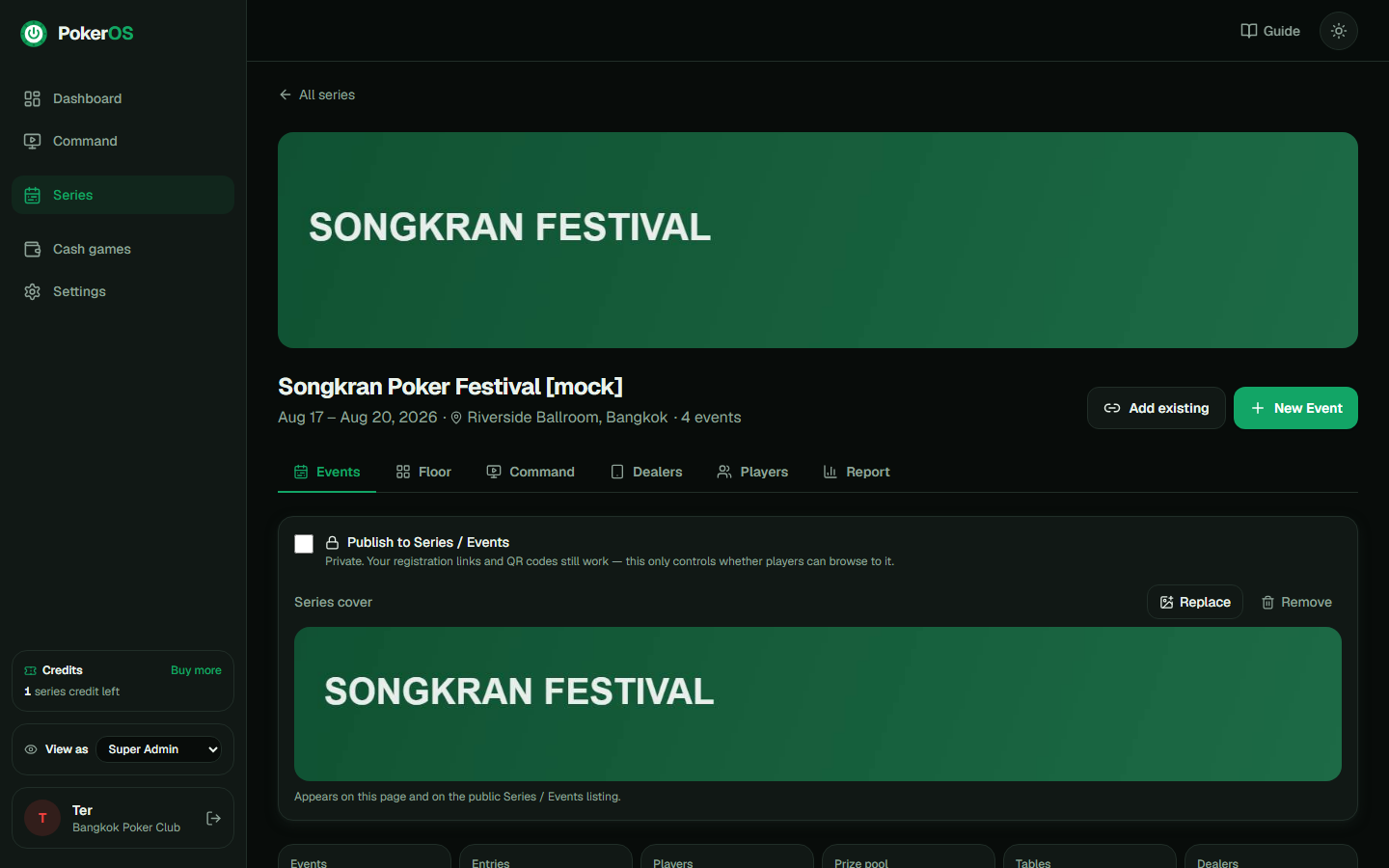
2The series is the container your events live under — a multi-day run, or just your standing game night.
- 1Series → New series. Give it a name, dates and a venue.
- 2Series and events are free to create. You pay per player who registers, or go Pro for unlimited.
- 3Add a cover image — it shows on the public page and across the series tabs.
- 4A one-off game night needs no series of its own: events created without one land in your club's House Games series, which costs nothing to open.
Add your events
3Name → Template → Settings → Blinds, as many times as the series needs.
- 1From the series, tap Events → New event.
- 2Pick a template (Turbo, Deepstack, Bounty, Championship) for sensible defaults.
- 3Settings: buy-in, stack, level length, seats, ante, re-buys/add-ons, buy-in cutoff and bounty.
- 4Edit the blind & ante levels, add breaks, and set the prize split (e.g. 50/30/20).
- 5Every event lands as a Draft. Draft is not a rough sketch — it is what “open for registration” looks like, and the only state in which settings can still be edited.
- 6Creating events costs nothing. The meter only runs when a player registers — and not at all on Pro.
Prize split, bounty & buy-in cutoff
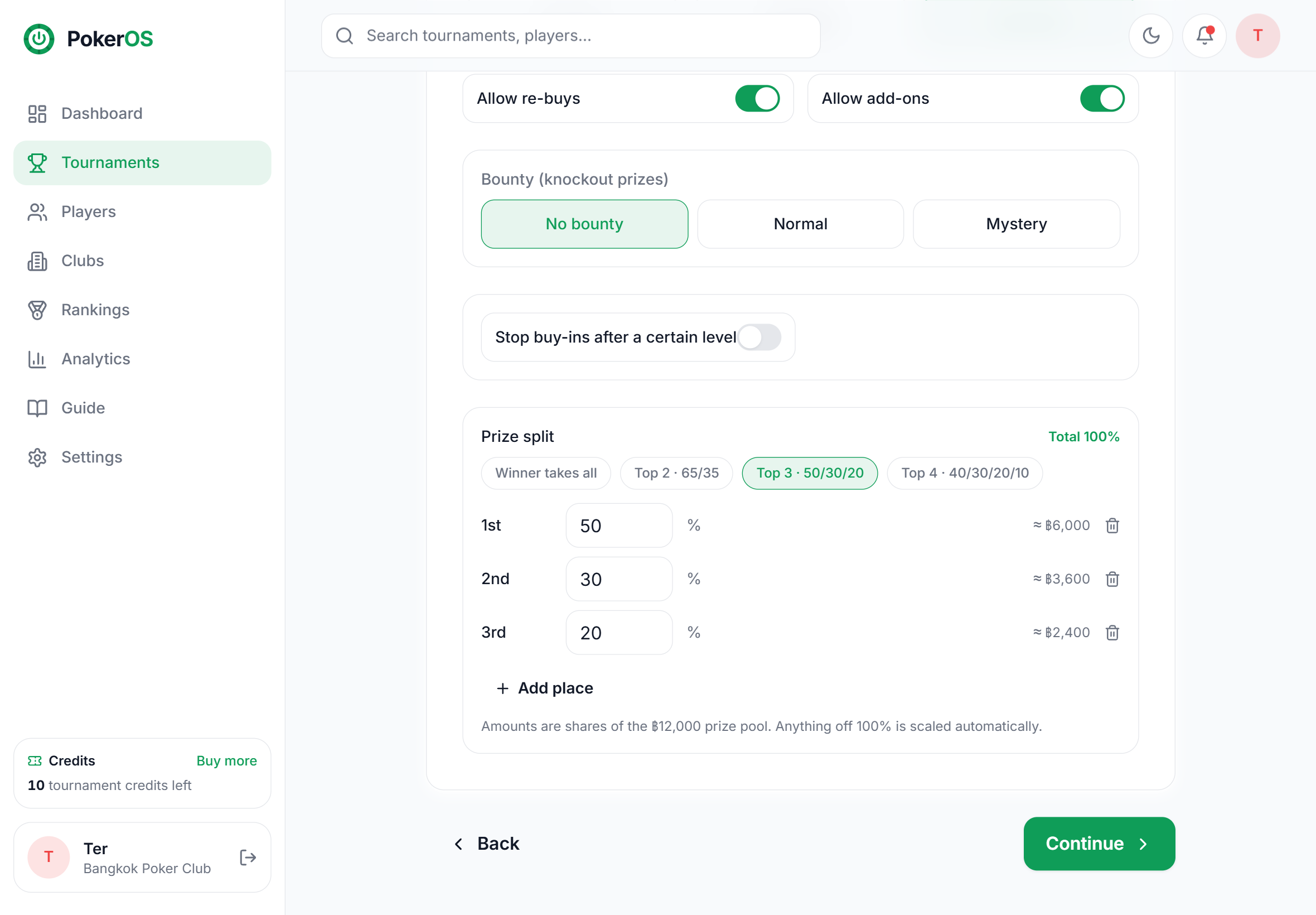
4Fine-tune the money and the rules right in the Settings step.
- 1Prize split: choose a preset (Winner-takes-all, 50/30/20…) or set custom % per place — off-100% is auto-scaled.
- 2Bounty: turn on knockout prizes and set the amount (taken from the buy-in).
- 3Buy-in cutoff: toggle “Stop buy-ins after a certain level” to close registration/re-buys/add-ons late in the game.
- 4Settings freeze once the clock starts, so get these right while the event is still a Draft.
Announce it
5Two switches stand between your schedule and the public page.
- 1On the series, turn on Publish to Series / Events. That puts the series on the public page.
- 2Then list each event you are ready to announce — the globe / lock button on every row of the schedule.
- 3Unlisted never means unreachable: a link or QR code you have handed out keeps working on a locked event. That is how you run a private game.
- 4Nothing is public until you do both, so a half-built schedule cannot leak.
Registration & check-in
6Players register from their phone; you check them in at the door.
- 1Share the link/QR — players enter name + phone and get a QR ticket.
- 2Phone is required, walk-ins included: it is how a player is recognised across every event in your club.
- 3A full event takes a waiting list rather than pretending there is a seat.
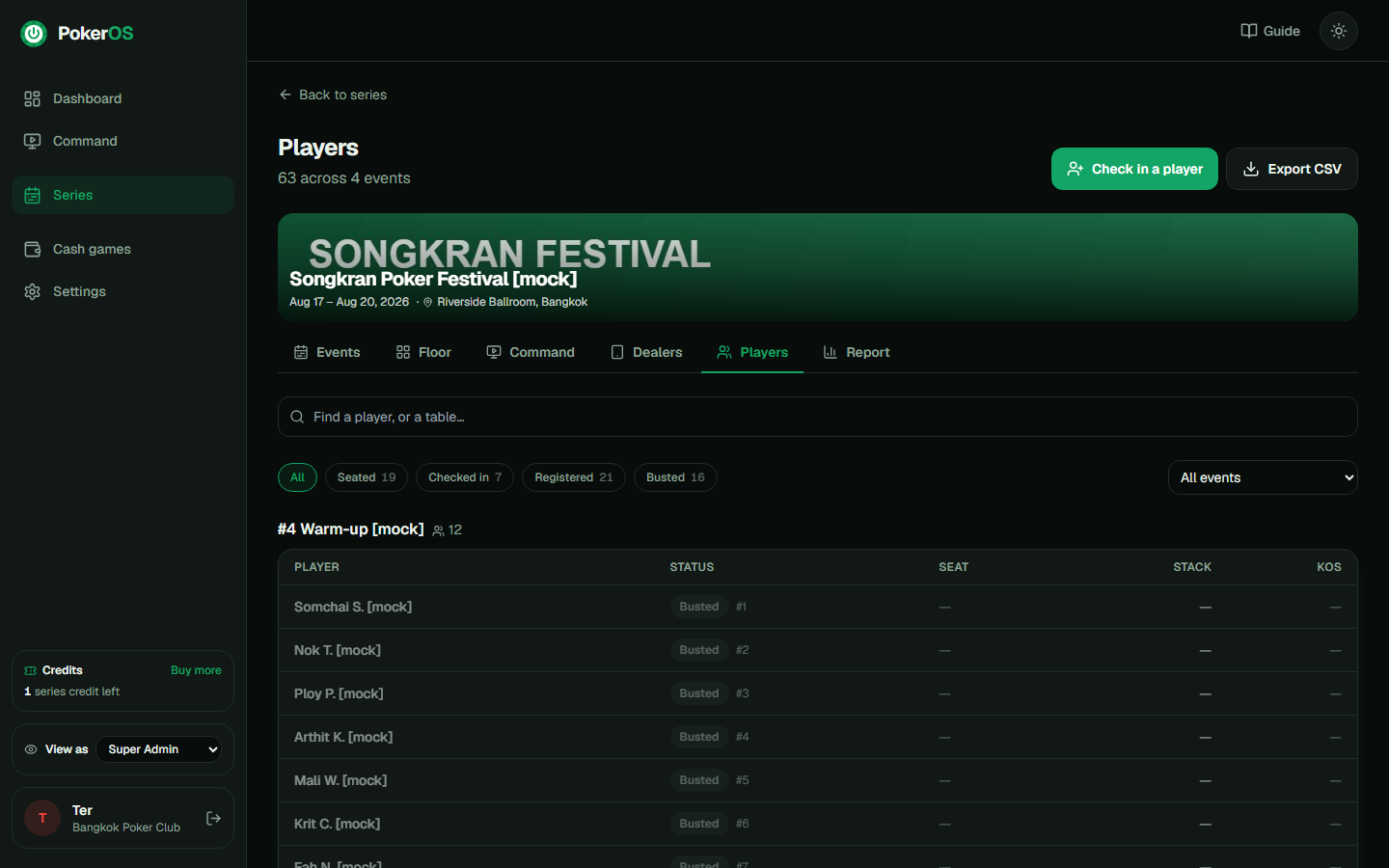
- 4Check people in from the series' Players tab — or simply seat them, since sitting someone down checks them in as one gesture.
- 5The status chips keep their full counts while they filter, so you can read 21 registered while looking at the 19 seated.
The floor
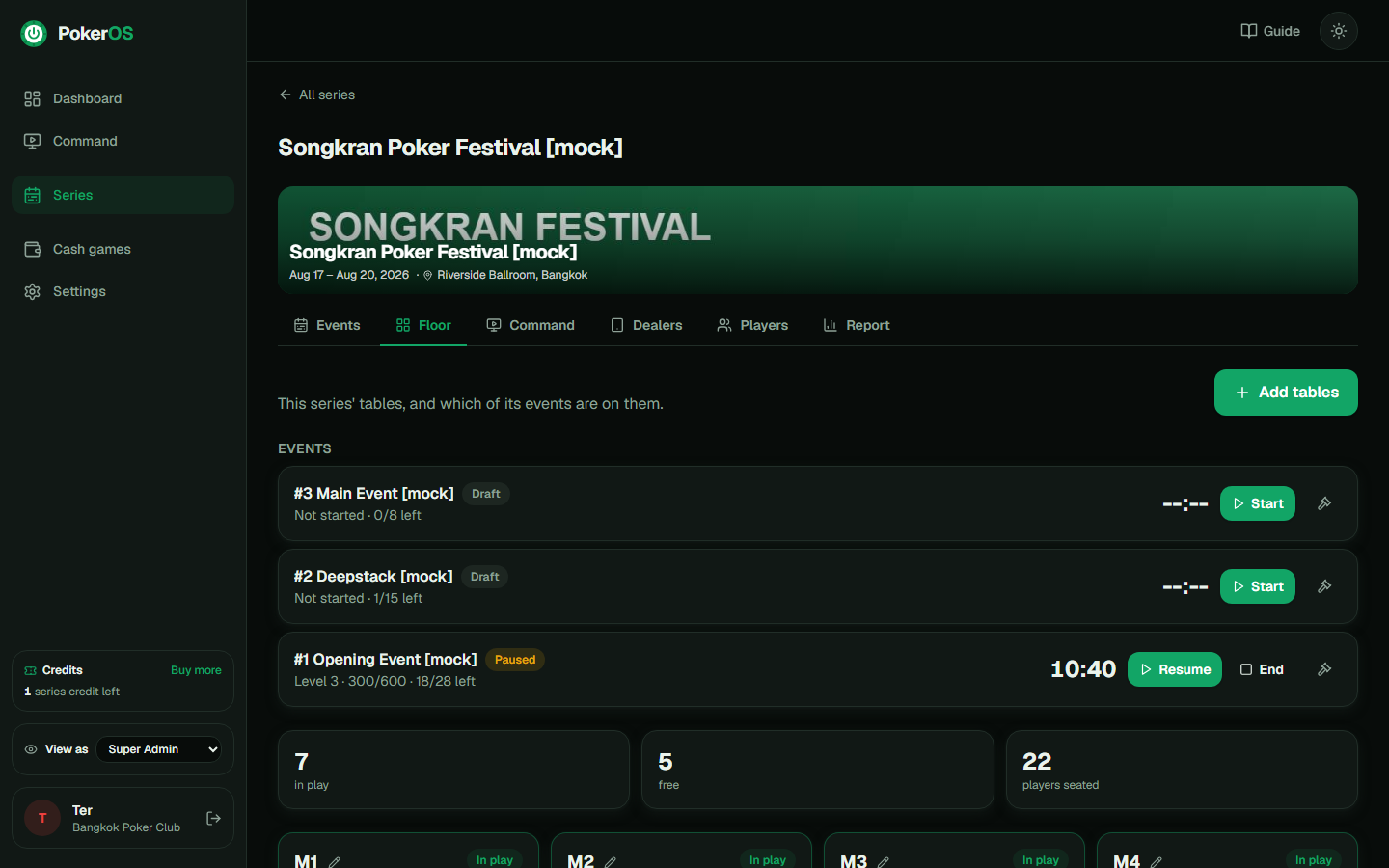
7Your real tables, mapped once, then used for every event.
- 1Series → Floor → Add tables. Choose how many and how many seats each; rename any of them inline later.
- 2Give a table an event and a dealer from the dropdowns on its card — that is what turns furniture into a live table. Change the event later and the table moves with it.
- 3Tables added here belong to this series, so the floor only ever shows you the room you are working tonight.
- 4Zones name the parts of that room — Main Floor, VIP, Terrace — and put them in the order you walk them. Open Zones to add or reorder them; move a table between zones from its own card. A zone is only ever where a table stands: it never changes who can sit, deal or play there.
- 5Break a table to take it out of play as the field shrinks, then close it. A table with players still on it refuses to close — breaking is the step that gets people up.
The felt
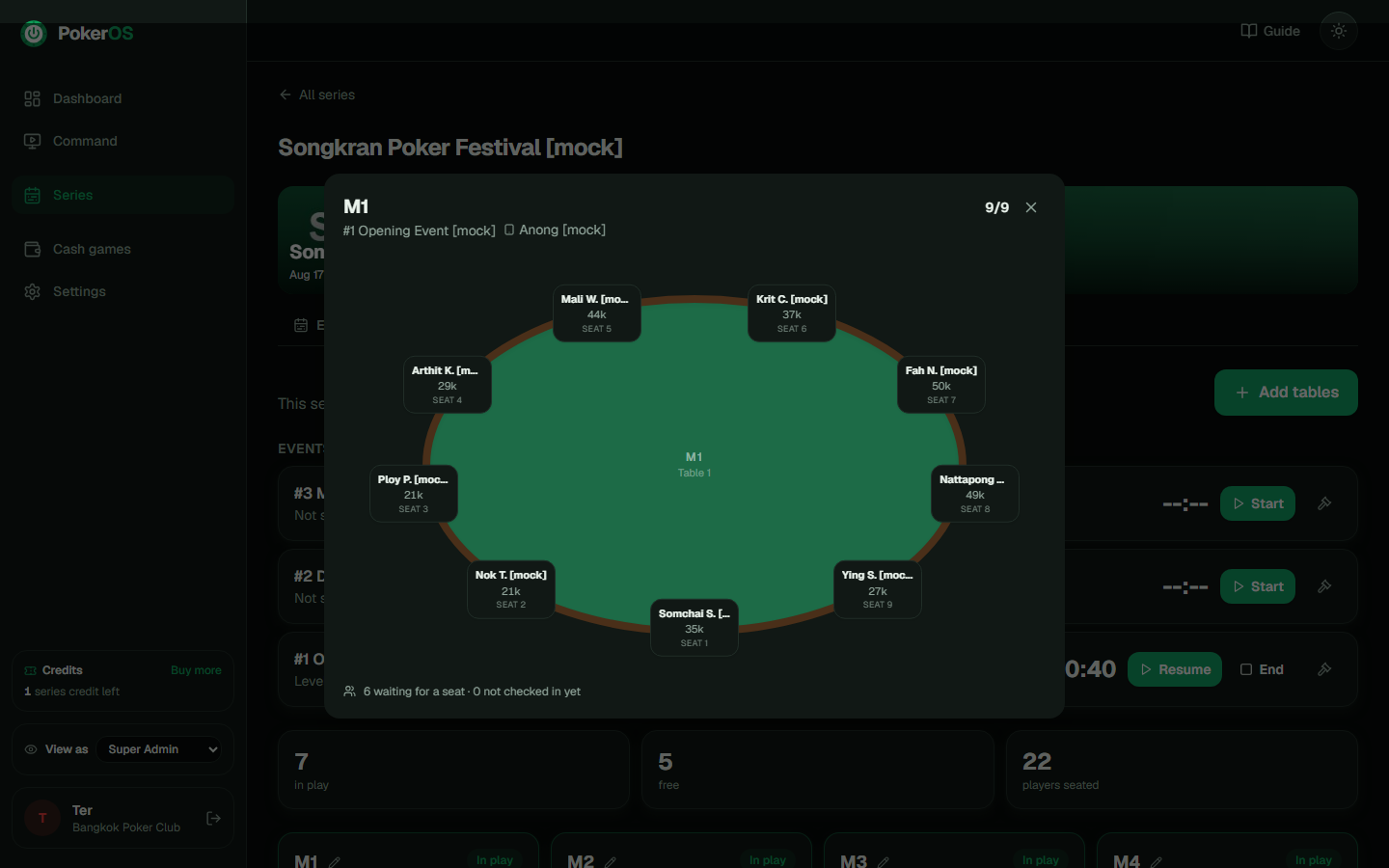
8One table, every chair — where most of the night actually happens.
- 1Tap Seats on any table card to open it: every chair, who is in it and their stack.
- 2Tap an empty chair to seat someone straight from the waiting list.
- 3Tap a seated player to adjust their stack, move them to another table, or bust them.
- 4Move lists the open seats grouped by table, so you are never guessing where there is room.
- 5Seats are claimed atomically — if two devices go for the same chair, exactly one wins and the other is told plainly.
Dealers
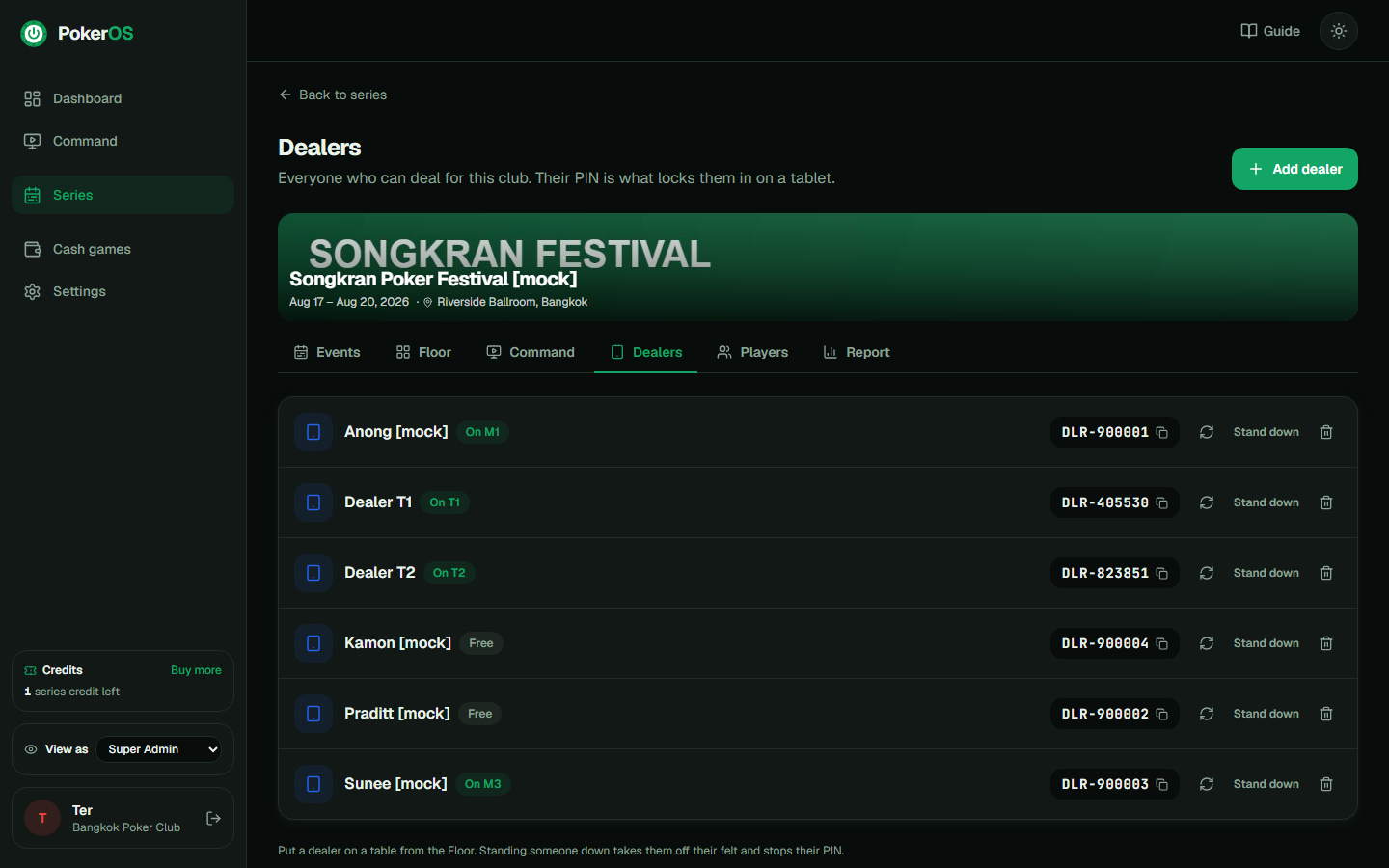
9Each dealer gets their own device, locked to their own felt.
- 1Series → Dealers → Add dealer, then read them their code.
- 2They enter it once at the dealer login and stay locked in — a code, not a password, is what pairs them to their tables.
- 3They see only the tables they are down on, with the same actions you have: stack, move, bust.
- 4Everything a dealer does is recorded against their name.
- 5A dealer holds no powers in the organizer app at all, by design.
Run the event
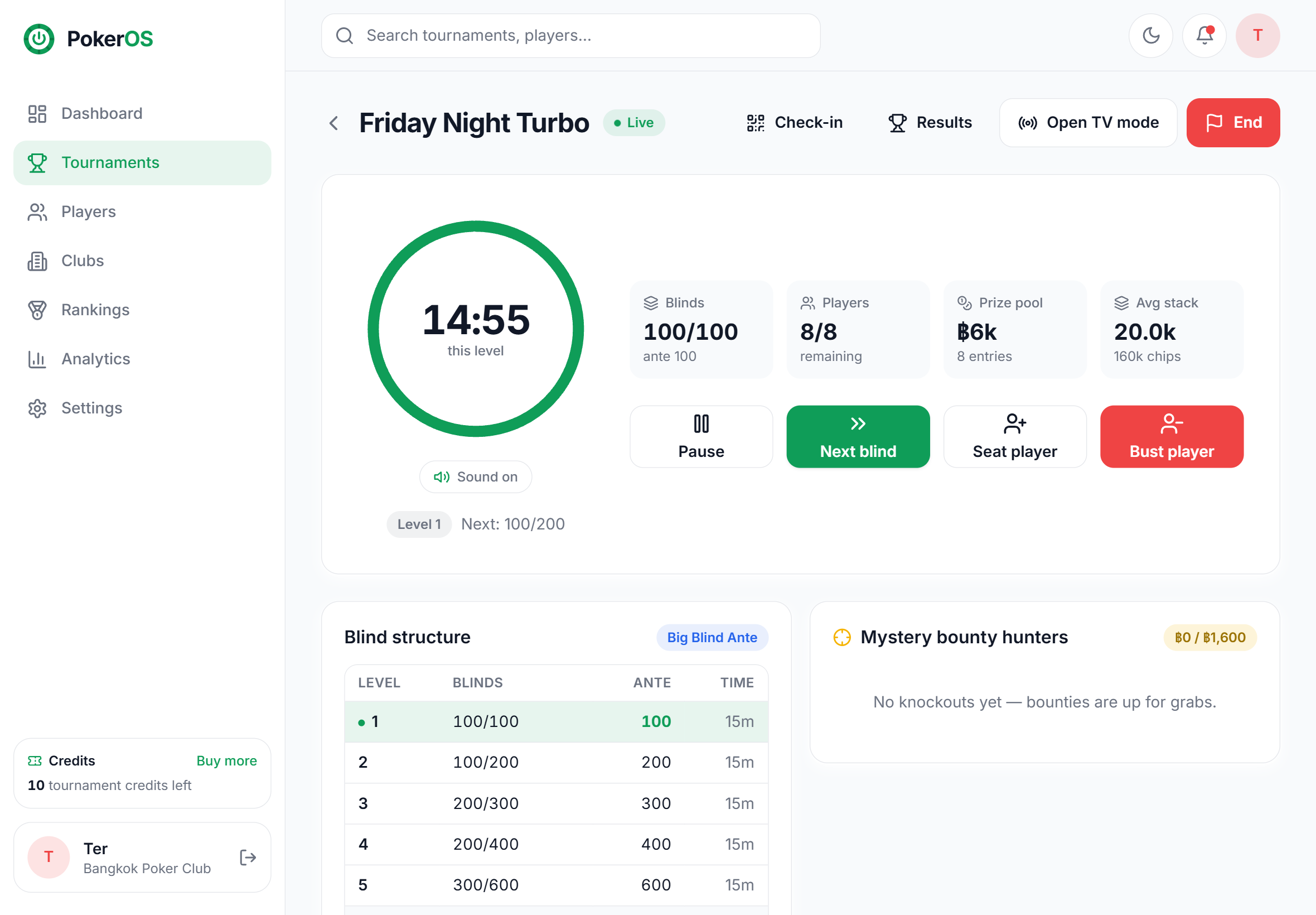
10Clock, seating and players, from the floor or the event screen.
- 1Press Start — the blind clock begins, and it survives page reloads.
- 2Pause / Resume / Break control the clock; Floor rulings keep a note of any decision you make, so a call made at 2am is still on the record in the morning.
- 3Busts record finishing position automatically; re-buy and undo are one tap.
- 4Hit End any time to finalise and publish results.
Command — the one screen for the night
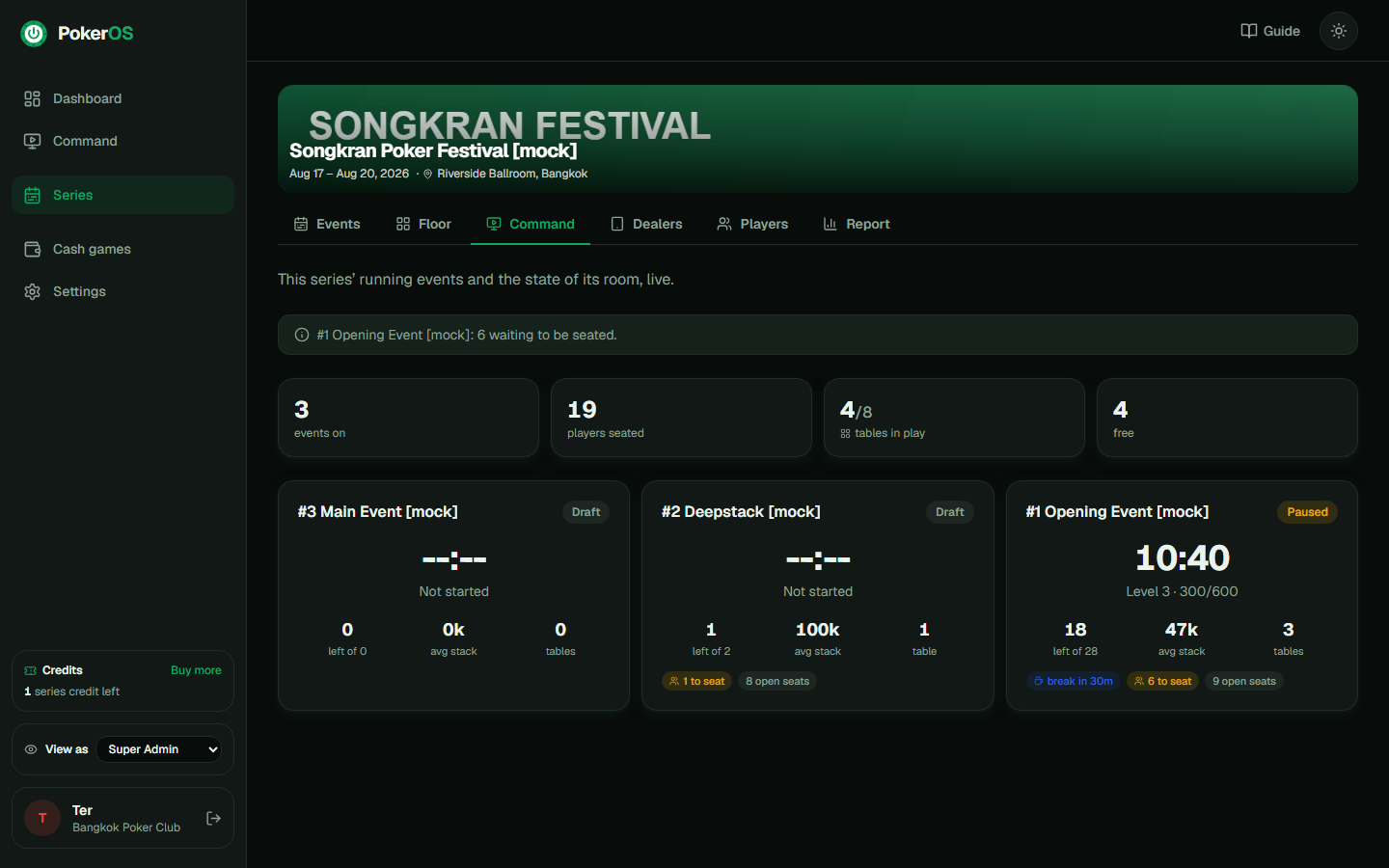
11Everything happening in this series, on a single page.
- 1Series → Command. It is a tab on the series, not a club-wide menu — the run you are working is the run it watches.
- 2Alerts come first, because this screen exists to be acted on.
- 3Below them: every event in the series and the state of its room.
- 4Leave it open on a spare tablet and it becomes the desk's status board.
Bounties (knockouts)
12Put a prize on each player's head for every knockout.
- 1Turn Bounty on when you build the event and set the amount per head.
- 2When you bust someone, pick who knocked them out — the bounty moves across.
- 3Knockout counts and bounty winnings appear on the results.
Cash games
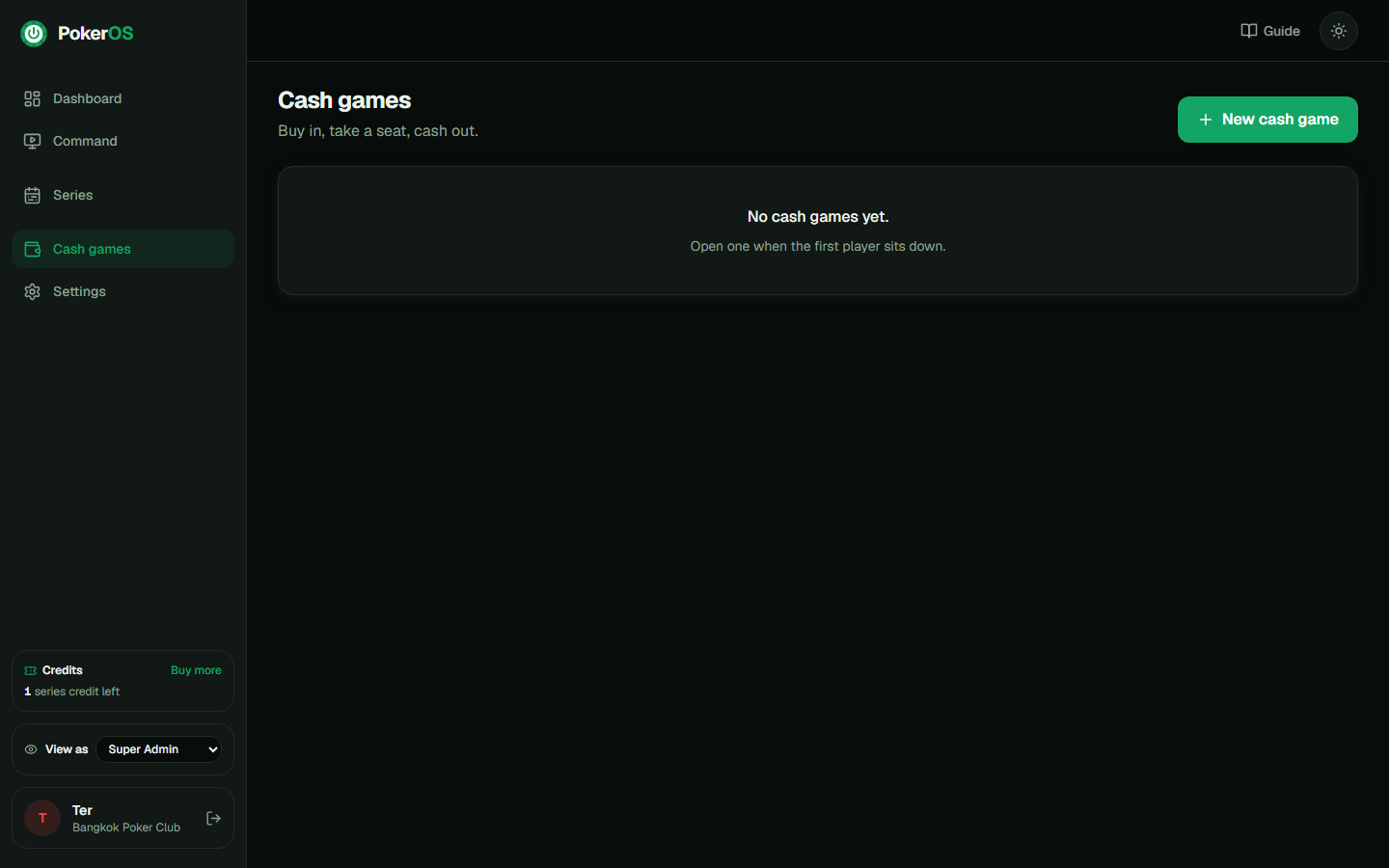
13Ring games, kept deliberately simple: buy in, take a seat, cash out.
- 1Cash → New game. Name it, set the stakes and seats per table.
- 2Seat a player with their buy-in — that is the whole entry flow.
- 3Another buy-in is one tap on their row; cash out is the one next to it.
- 4There is no clock, no blind structure and no payouts to configure. A cash game is a ledger of who bought in for what and who left with what.
TV mode
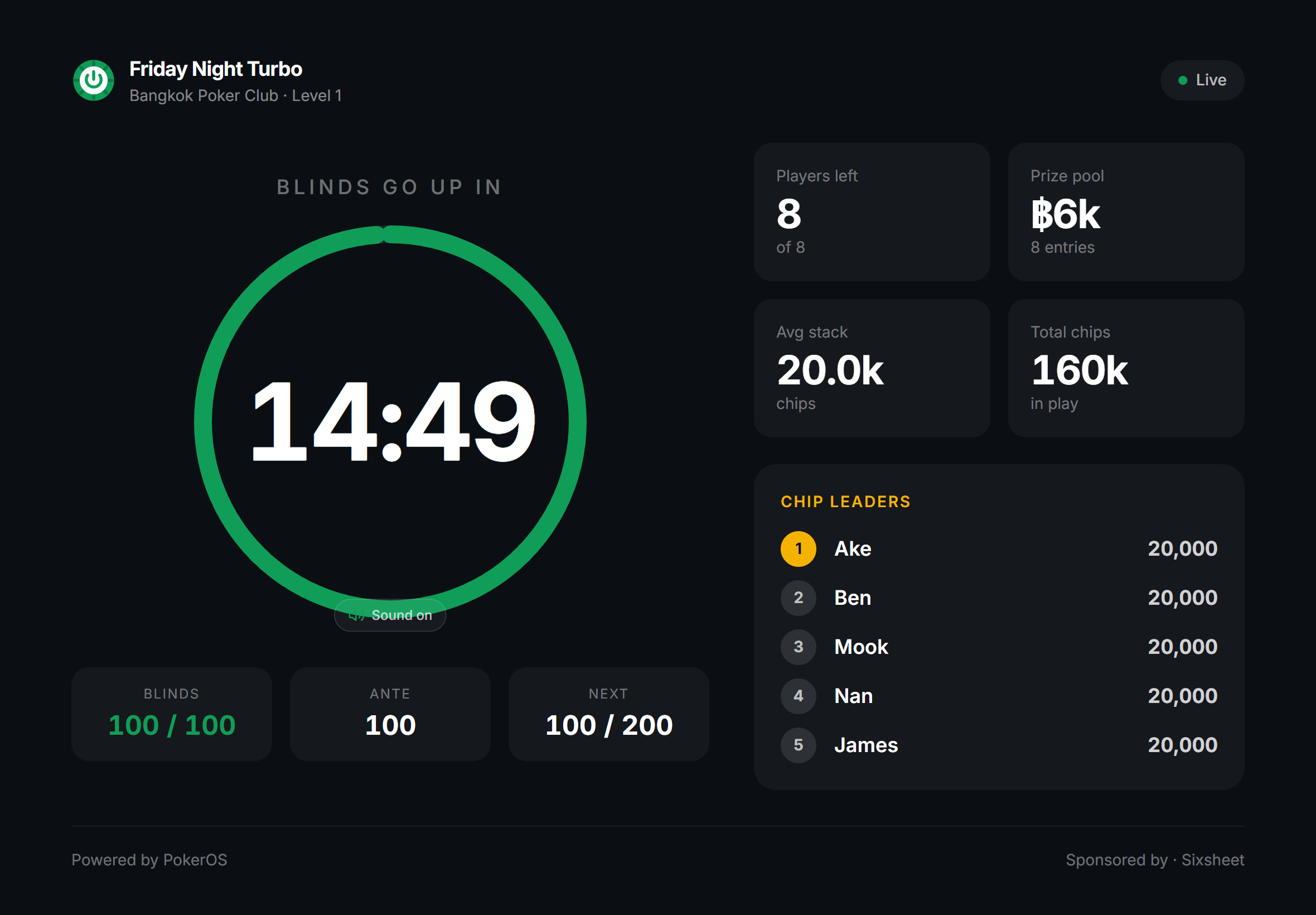
14A big, dark, castable board for a screen in the room.
- 1Open TV mode from the event screen and cast or full-screen it.
- 2Shows the clock, blinds, next level, entries left and average stack.
- 3Designed to be read from across the room.
Results
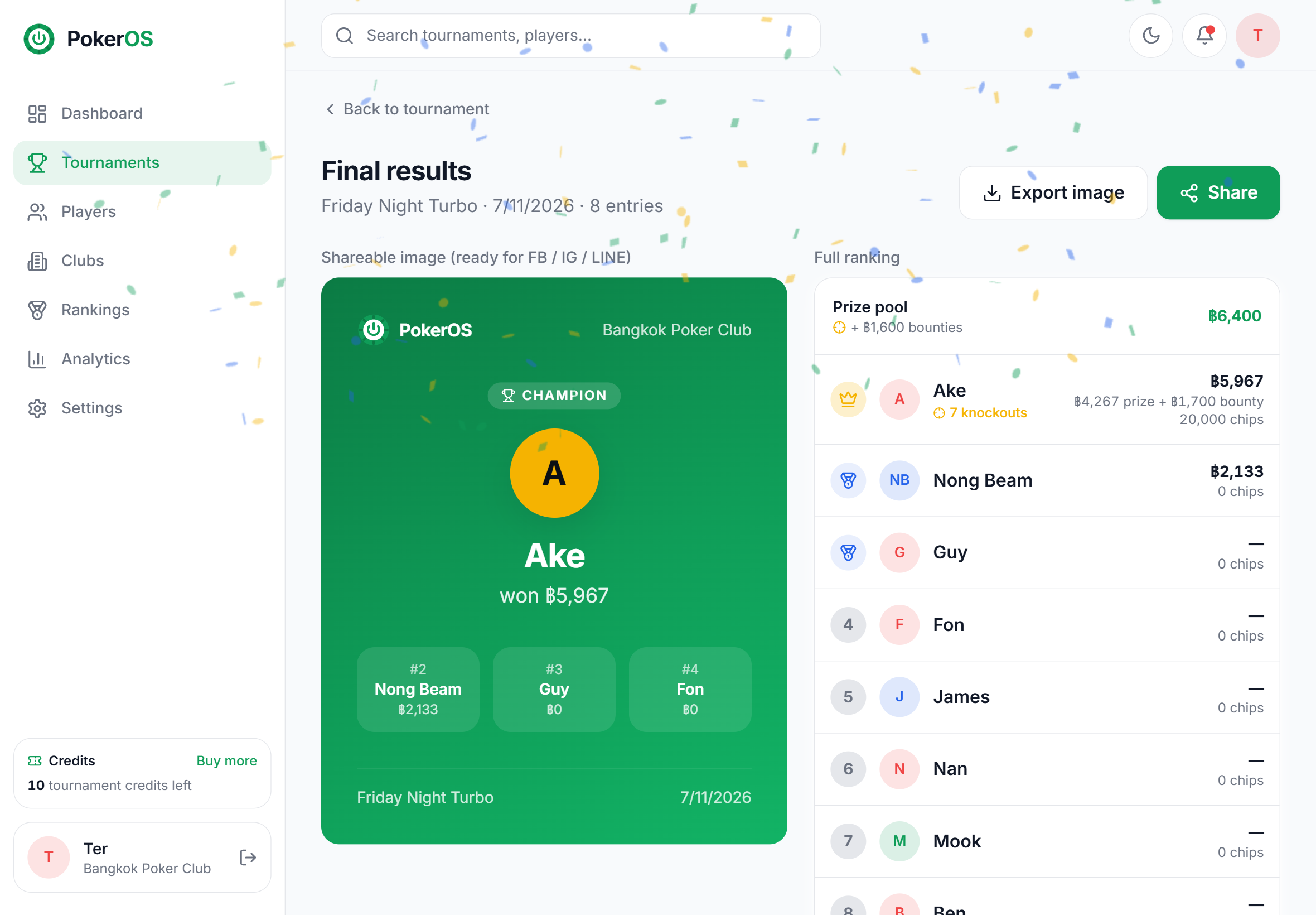
15Auto-ranked standings and a shareable winner image.
- 1Ending an event freezes it and publishes the finishing order and payouts.
- 2Results stay reachable from the event screen and from the public schedule.
- 3An old poster link still works — it tells the reader the event has finished rather than dead-ending.
Reports & ranking
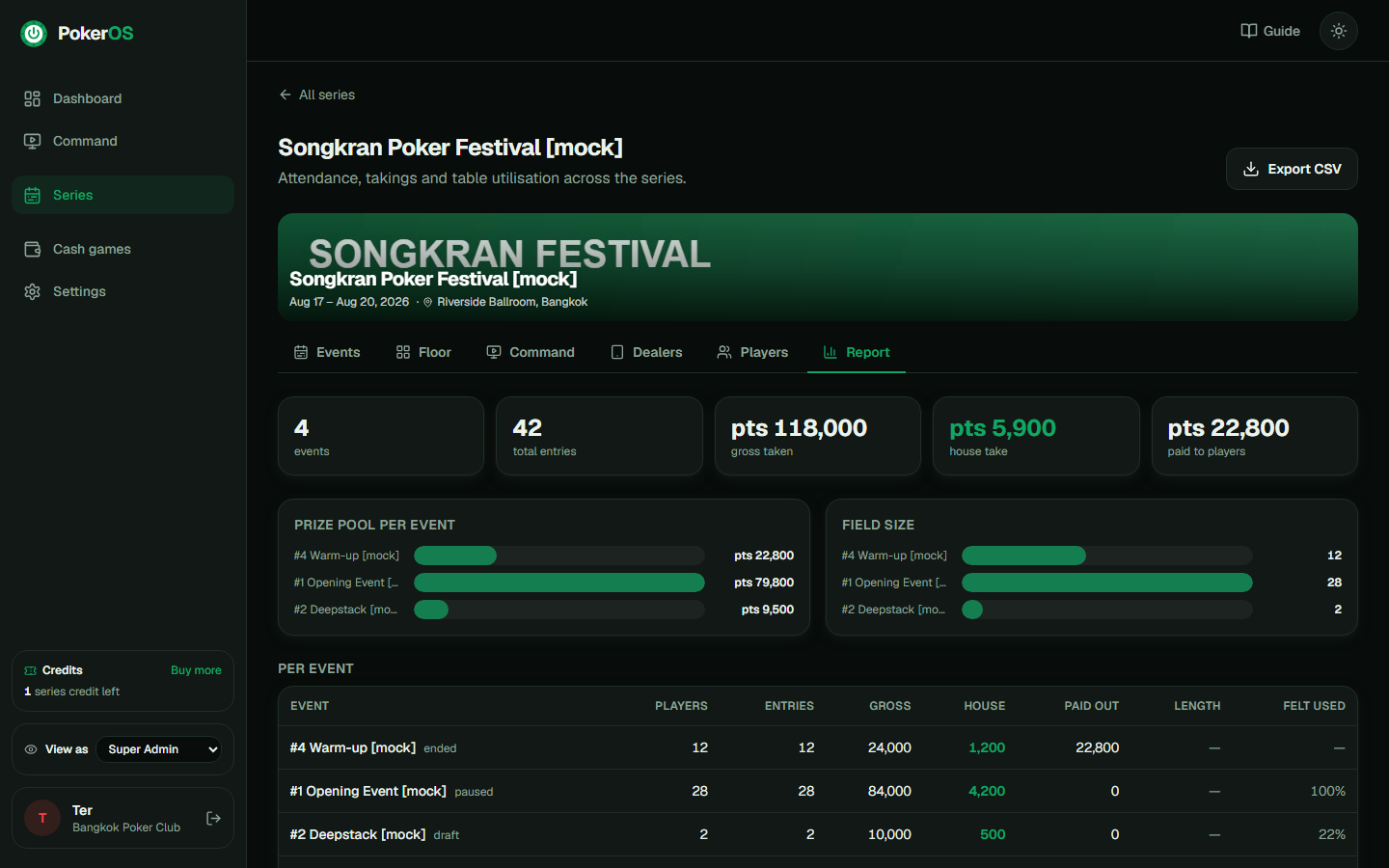
16The money for one series, and who keeps turning up across all of them.
- 1Series → Report: entries, gross, house take, paid out, distinct players, and a leaderboard for that series.
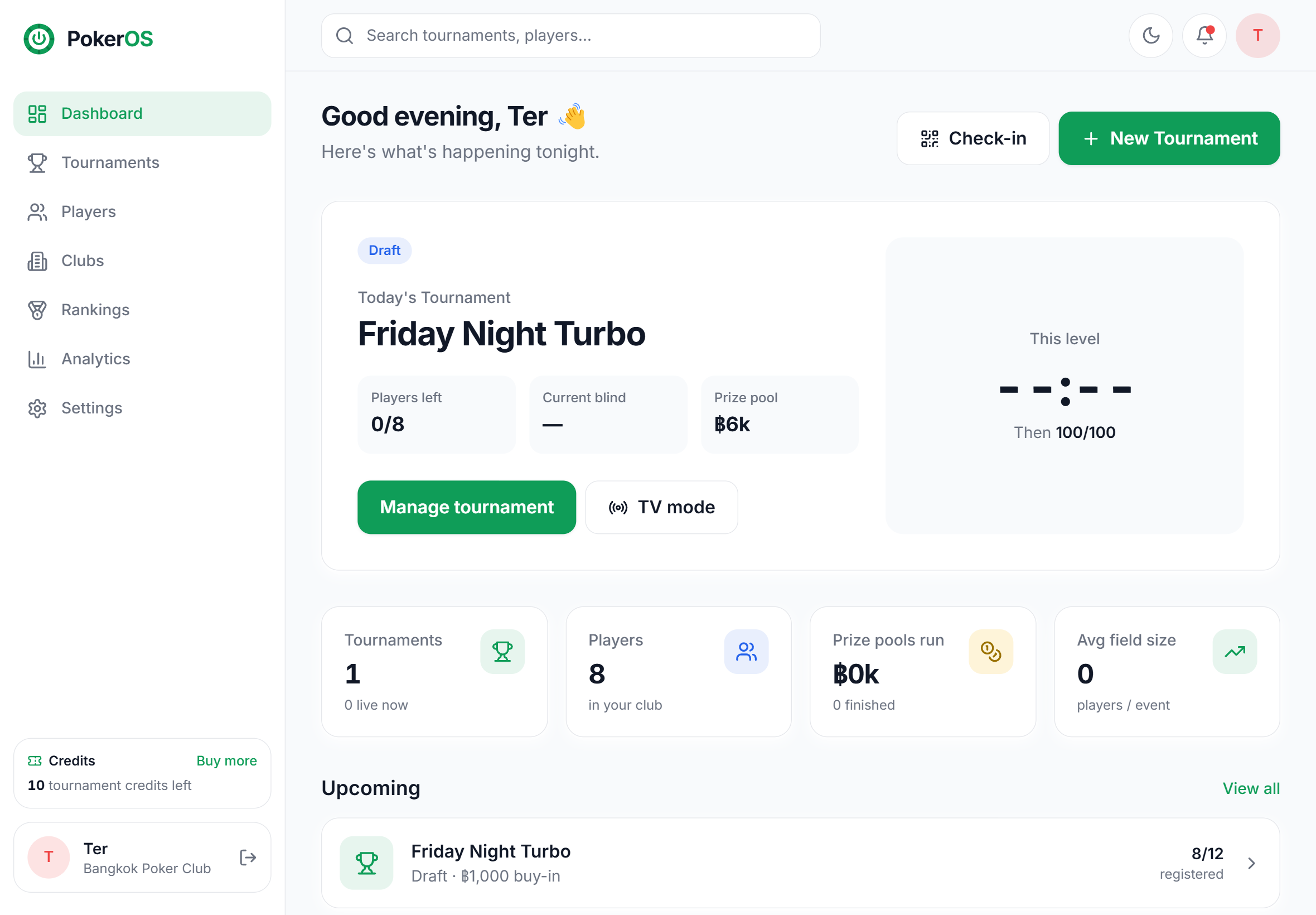
- 2The Dashboard carries the club-wide ranking — wins and attendance across everything you have ever run.
- 3Each series reports on itself, so one series' numbers never blur into another's.
Your team
17Two organizer roles, and the sidebar follows whichever one someone holds.
- 1Settings → Team. Create the person's profile first — you get a one-time password to hand over.
- 2Super Admin has full control: series, events, staff, billing, cash. Floor is live ops only — check-in, seating, tables and the clock.
- 3Access decides how much of the club they see: “Every series in the club”, or only the one you pick. A series-scoped Floor login finds nothing outside it.
- 4Dealers are not team members. They never open the organizer app — they work from a paired device and a code.
- 5Anyone joining through your invite link arrives as Floor, never as an owner. Promote them yourself if that is what you meant.
- 6Each person only sees the menus their role can use, so nobody is handed a button that will refuse them.
What it costs
18Pay per player, or go unlimited. No subscription either way.
- 1Pay as you go: one credit per registration, ฿3,446 for 1,000. Credits never expire.
- 2Or go Pro — ฿2,450 a month, or ฿26,460 for the year (save 10%) — and stop counting players.
- 3Pay securely via Stripe — card or PromptPay — credits are added automatically.
- 4There is no subscription. Every purchase is a single payment, and a Pro term simply runs out unless you buy another.
- 5Cash games are part of Pro. Everything else — series, events, staff, dealers — is on every tier.
Club settings
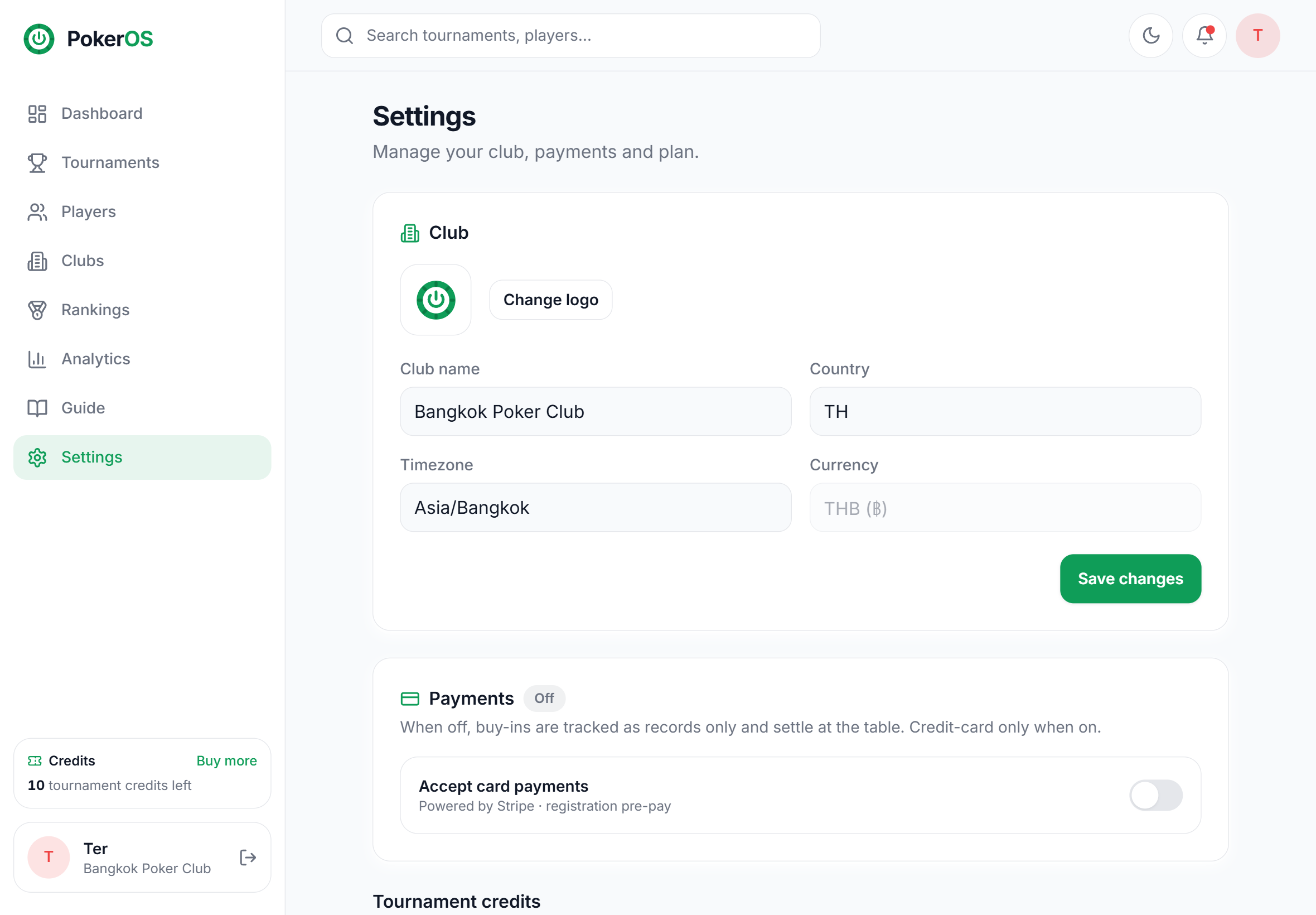
19Your club details, your team and your billing.
- 1Edit your club name, country and timezone; changes reflect across the app.
- 2Buy credits by card or PromptPay — see your purchase history below the packages.
- 3Buy-ins are always tracked as records and settle at the table — PokerOS never processes player money.
When someone can't get in
20Both sides reset themselves — nobody has to wait for you.
- 1Organizer or staff: Forgot password on the login screen sends a reset link to their email, good for an hour.
- 2Player: Forgot PIN on the player login sets a new one from their phone number alone.
- 3That is deliberate — a player account is keyed on phone and holds no money, so it trades strictness for not stranding someone at the door.
- 4There is no PIN reset for you to perform any more; the desk stopped being the bottleneck.
Good to know
21Small touches that make running games nicer.
- 1Light / dark theme toggle in the top bar — it follows your device by default.
- 2A sound chime plays when the blinds go up (mute it on the clock).
- 3Install it like an app — “Add to Home Screen” on iPad/phone (PWA).
- 4View as, next to your name, previews the app exactly as a Floor or Dealer sees it — menus included.
- 5Some refusals are on purpose: a table with players on it will not close, and an event that has started will not let you rewrite its structure.
For your players
Share this part with people who play in your games. They don't need an organizer account — just a phone to join, follow the clock and keep their stats.
Join a game
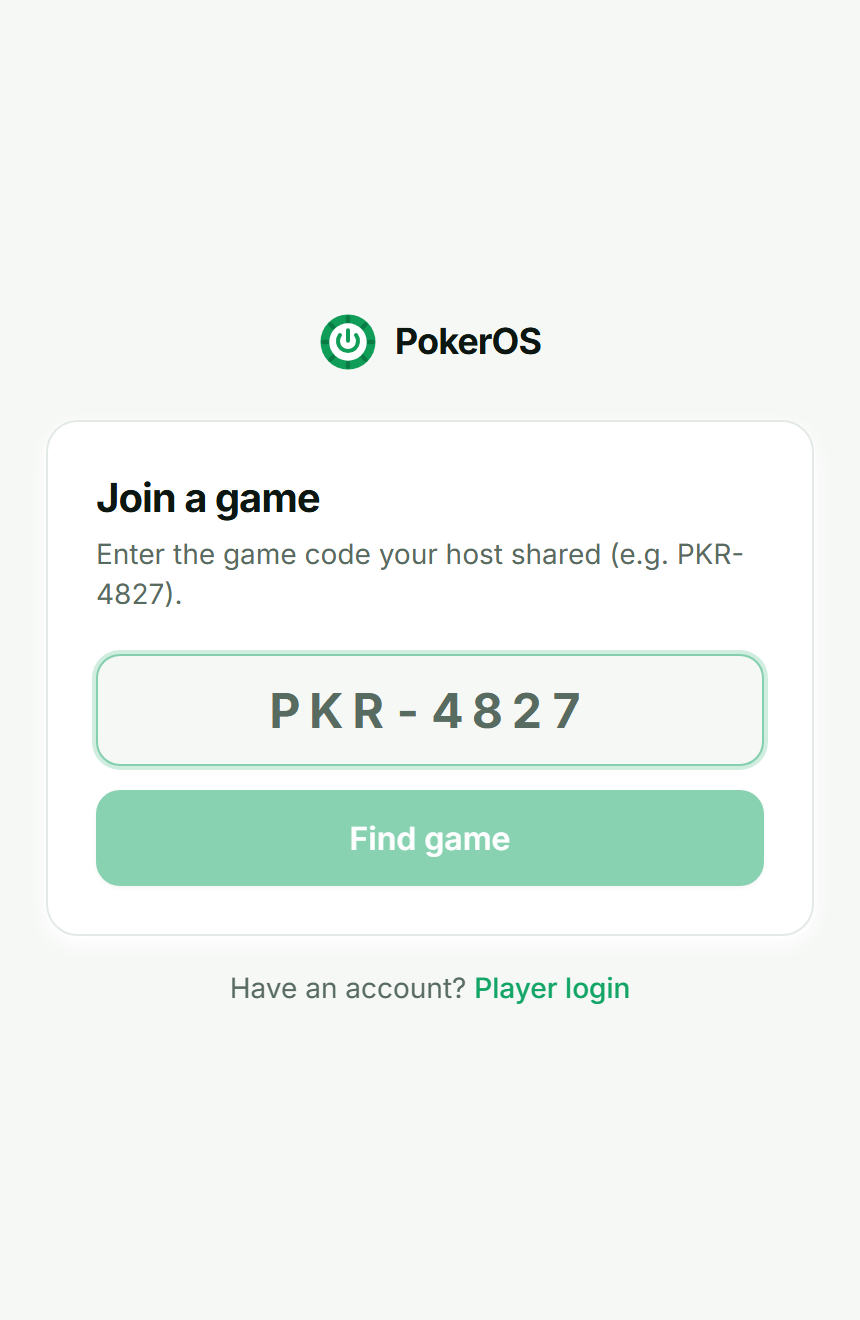
P1Get in from your phone in seconds — no app, no signup.
- 1Ask the organizer for the game code (like PKR-4827) or scan the table QR.
- 2Open the join page, enter the code, and register with your name and phone.
- 3You get a QR ticket — show it at the door and the organizer seats you.
Follow the game & your stats
P2Track the action and your own record from your phone.
- 1Log in to the player portal with your phone number and a PIN.
- 2Forgotten it? Forgot PIN sets a new one from your phone number — no waiting on the desk.
- 3See your seat, chip stack and the live blind clock while you play.
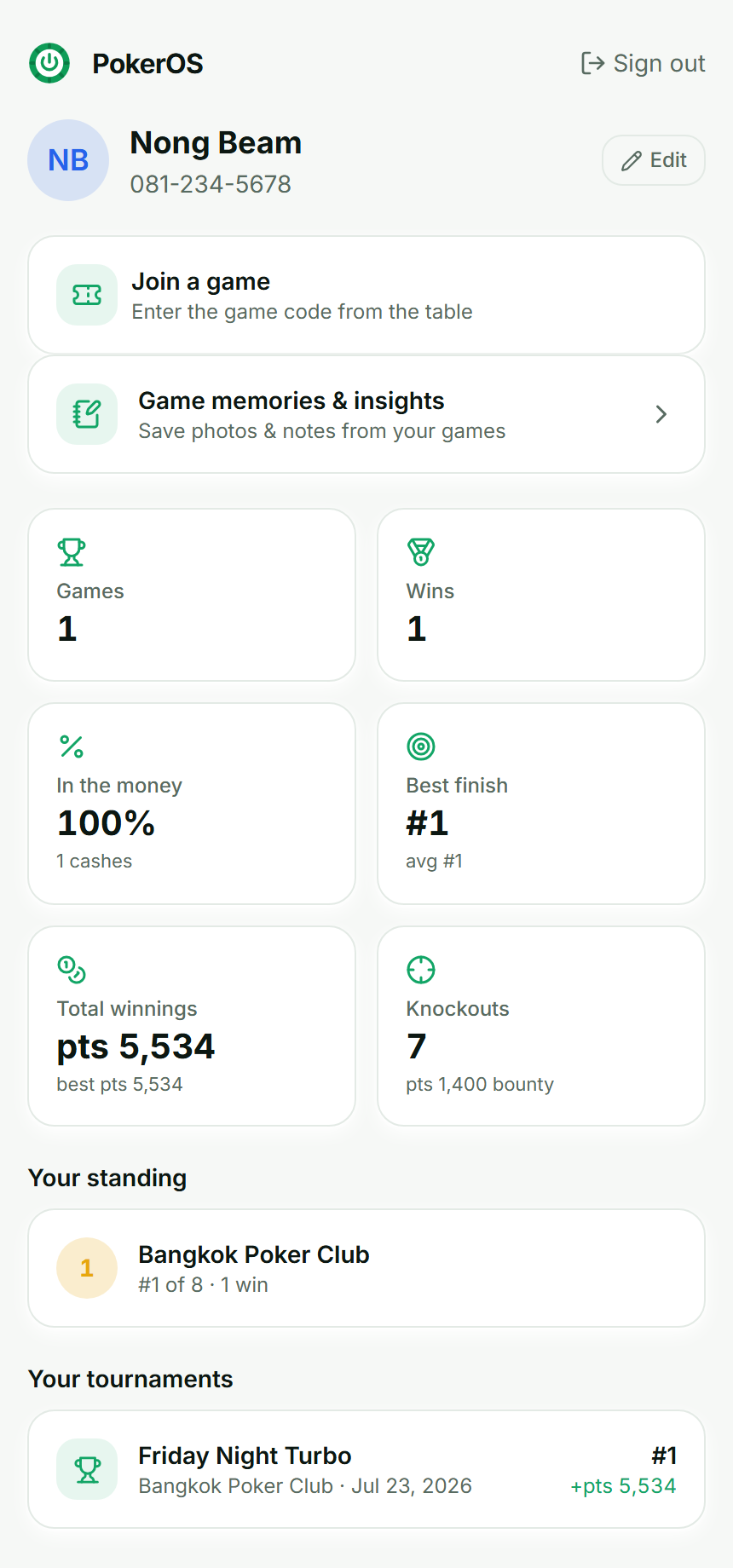
- 4Your profile keeps games played, wins, total winnings and knockouts.
Rankings & memories
P3Every game you play builds your season story.
- 1Climb the club's season leaderboard as you cash and win.
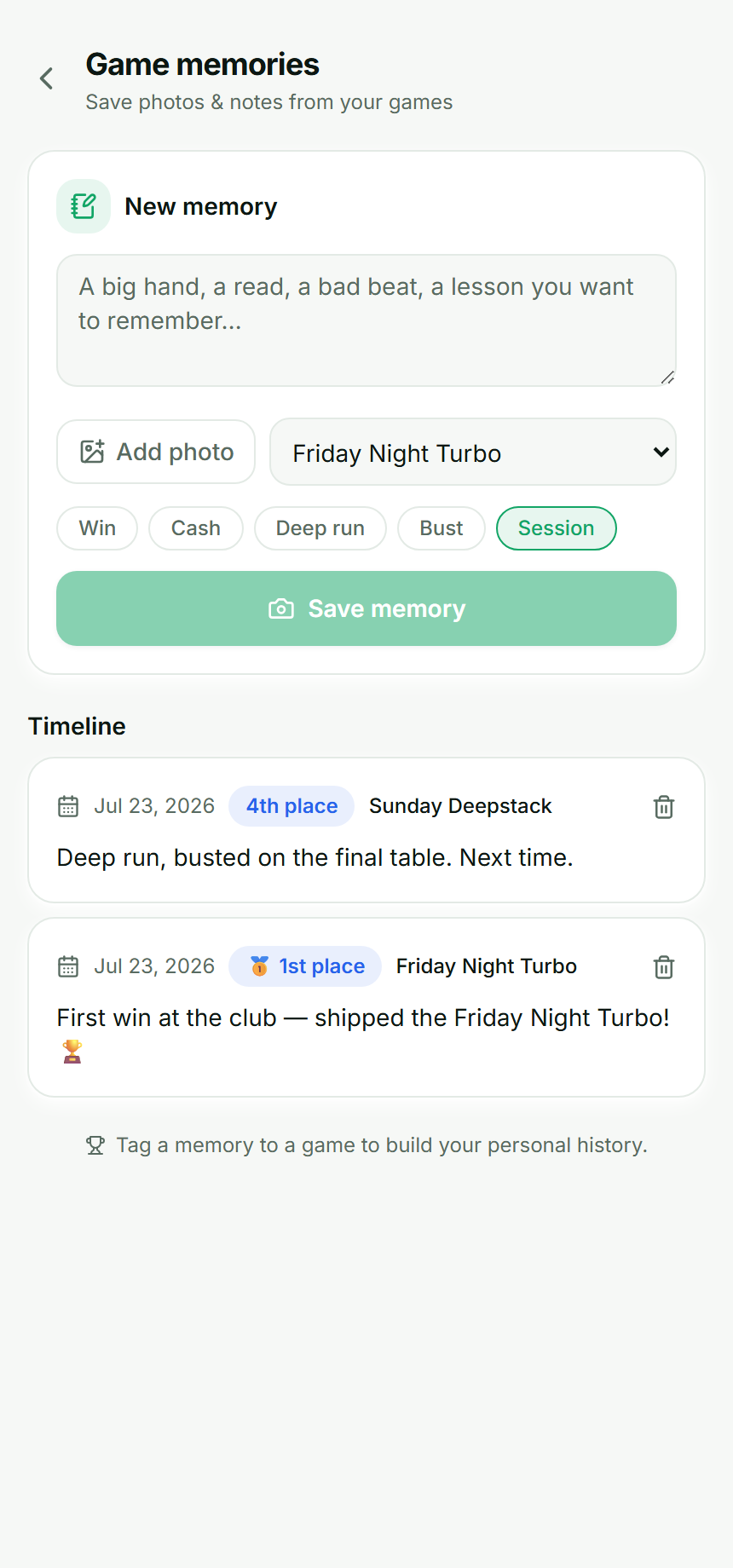
- 2Relive past games in the photo timeline under Game memories.
- 3Your public profile shows your results across the whole season.
Ready? Start your first series →